Connect. View. Control.
The User Application first grants permission, then the Master Application connects to the User device. Once connected, the Master can view the User's screen in real time and remotely control the device.
50K+
Sessions run
99.9%
Uptime
25+
Countries
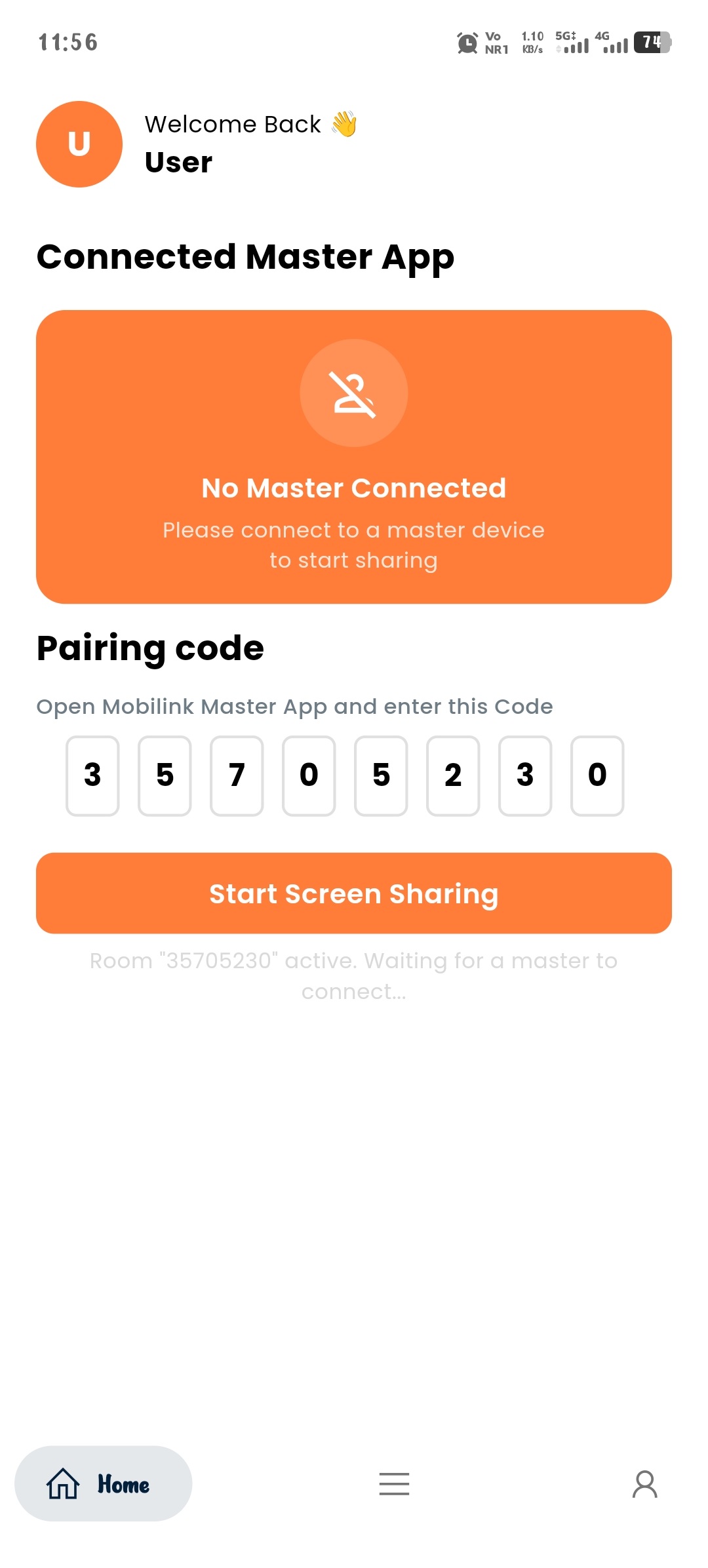
User App
User Device
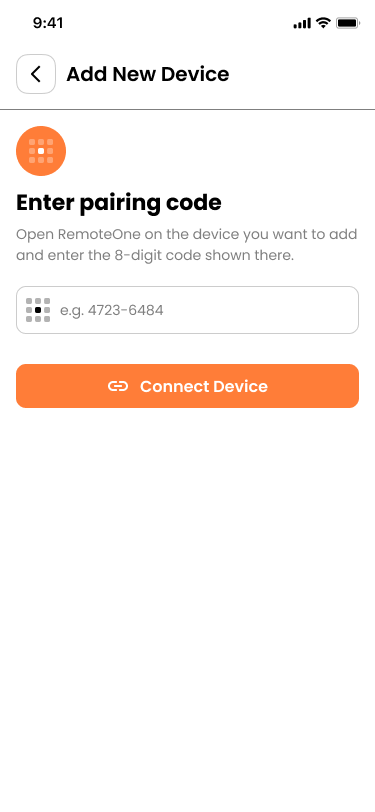
Master App
Master Device
Trusted by support teams at
Connect, view and control from Master to User
Mobilink enables the Master Application to connect to the User Application after permission is granted, providing real-time screen viewing and remote device control.
User Permission
The User Application requires the user to grant permission before the Master Application can connect to the device.
Master to User Connection
Once permission is granted, the Master Application can establish a connection with the User Application.
Real-Time Screen Viewing
The Master can view the User's device screen in real time through the connected session.
Remote Device Control
With the required permission, the Master can remotely interact with and control the User's device.
Permission-Based Access
Device access and remote control are available only after the User grants the required permission.
Connected Experience
Viewing and remote control work together through a single connection between the Master and User Applications.
Everything you need to connect, view and control
A focused feature set for permission-based Master-to-User connections, real-time screen viewing, and remote device control.
Real-Time Screen Viewing
The Master can view the User's device screen in real time after the User grants permission.
Unique User Code Pairing
Each session uses a unique User Code to connect the User Application with the Master Application.
Permission-Based Access
The User must grant permission before the Master can connect, view the device screen, or use remote control capabilities.
Secure, Encrypted Connections
The connection between the User Application and Master Application is protected to help keep session communication secure.
Remote Touch Control
After the required permission is granted, the Master can remotely interact with the User's device to assist with actions on the screen.
WebRTC streaming core
Built on WebRTC to provide real-time communication between the Master Application and User Application for responsive screen viewing and remote interaction.
Low latency, high clarity
Optimized real-time streaming keeps the User device screen clear and responsive, helping the Master view and interact with the device with minimal delay.
Fast pairing
The Master enters the User Code to initiate a connection, and the User grants permission before the Master can view and control the device.
Session management
Manage active Master-to-User connections, session duration, and session activity through the centralized Super Admin dashboard.
Easy setup
The User installs and opens the User Application while the Master uses the Master Application to connect through a simple permission-based process.
Cross-platform by default
The User Application supports mobile devices across iOS and Android, while the Master Application provides a connected interface for viewing and remote control.
Enterprise ready
Centralized administration, role-based access, session records, and management controls help organizations manage Master-to-User connections at scale.
Lightweight footprint
Designed to provide a simple and efficient User Application experience while enabling the Master to connect, view, and remotely control the User device after permission is granted.
Connect. View. Control.
The User grants permission first. The Master then connects to the User Application to view the screen and remotely control the device.
Open the User App
The User opens the Mobilink User Application on the device that will be connected to the Master.
Generate a User Code
The User Application generates a unique code that identifies the User device and connection session.
Enter the Code in the Master App
The Master opens the Master Application and enters the User Code to request a connection with the User device.
User Grants Permission
The User receives a permission request and grants access before the Master can connect to the device.
Master Views & Controls
Once connected, the Master can view the User's device screen in real time and remotely control the device according to the granted permissions.
Built for real-world Master-to-User connections
From telecom and banking to healthcare and government, Mobilink enables permission-based viewing and remote device control across industries.
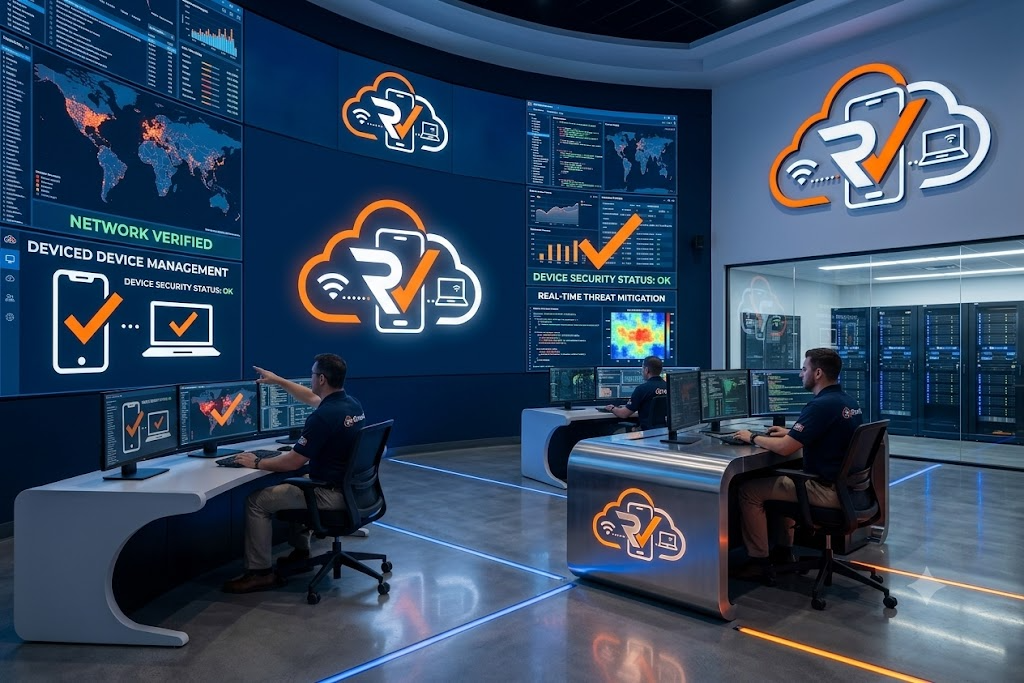
Your device. Your permission. Your control.
Mobilink is built around permission-based access. The User grants the required permission before the Master can connect, view the device screen, or remotely control the User device.
Encrypted sessions
Every screen-sharing session is encrypted in transit from the User App to the Master App.
Permission Required
The Master cannot access the User device until the User explicitly grants the required permission.
Private, One-to-One Connections
Each session connects a User Application with a Master Application through a dedicated connection.
Secure pairing codes
User Codes are single-use and expire quickly, so old codes can't be reused to reconnect.
Permission-Based Control
Remote device control is available only after the User grants the required permission to the Master.
A closer look at the Mobilink experience
Explore the User Application, Master Application, Super Admin Dashboard, and connected Master-to-User experience.
0
Enterprise clients
0
Platform availability
0
Support sessions run
0
Countries served
Support leaders trust Mobilink to close the loop
Real results from teams across telecom, banking, healthcare, and retail.
“Mobilink makes the connection between the Master and User applications simple. Once the User grants permission, the Master can view the device screen and remotely assist without the usual back-and-forth.”
Ananya Reddy
“The permission-first approach gives the User control over when access is granted. After permission, the Master can connect, view the device, and perform remote actions when required.”
Rahul Sharma
“The Master can see exactly what is happening on the User device instead of relying on descriptions. Remote control also makes it easier to guide users through applications and device-related tasks.”
Sneha Iyer
“The User Code makes pairing straightforward, and once permission is granted, the Master can quickly connect to view and remotely control the User device.”
Vikram Rao
Empower Your Support Team with the Right Plan
Explore our flexible pricing options designed to help businesses deliver secure, efficient, and reliable remote customer support.
Starter
For small support teams getting started with live screen sharing.
- Up to 5 support agents
- Unlimited sessions
- iOS & Android User App
- Basic session history
- Email support
Business
For growing support organizations that need visibility and control.
- Up to 50 support agents
- Unlimited sessions
- Team session dashboard
- Role-based access
- Priority support
- Session analytics
Enterprise
For large teams with compliance, scale, and integration needs.
- Unlimited agents
- SSO & advanced permissions
- Dedicated infrastructure
- Custom SLAs
- Audit logs & compliance reports
- Dedicated account manager
Questions, answered
Everything support and security teams usually ask before rolling out Mobilink.
Yes. After the User grants the required permission, the Master can view the User's device screen and remotely control the device according to the permissions granted.
Ideas on modern support
Field notes on remote support, security, and reducing resolution time.
Ready to transform your support experience?
Book a live demo and see how Mobilink pairs with your existing support workflow in minutes.
Let's talk about your support workflow
Book a personalized walkthrough or send us a note — we typically reply within one business day.
Get in touch
Email
support@mobilink.tech
Phone
+91 9177767772
Office
Third Floor, Plot No. 1202 & 1215A, Road No. 36, Shaikpet, Jubilee Hills, Hyderabad, Telangana 500033